![61468ac2f2b2276d28d052df_logo-500-1-1.png]](https://help.revive.realestate/hs-fs/hubfs/61468ac2f2b2276d28d052df_logo-500-1-1.png?height=30&name=61468ac2f2b2276d28d052df_logo-500-1-1.png)
Editing your Revive AI report is a straightforward process that allows you to personalize and refine the data and presentation to better suit your needs or those of your clients. Whether you're looking to adjust the visual theme or fine-tune the property analysis, here's how you can make a Revive AI report your own.
Customizing Report Colors
- Access Your Report: Log into your Revive account and open the Revive AI report you wish to edit.
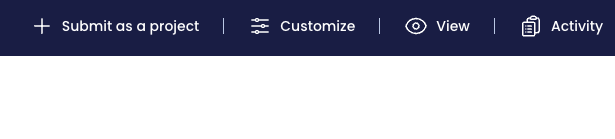
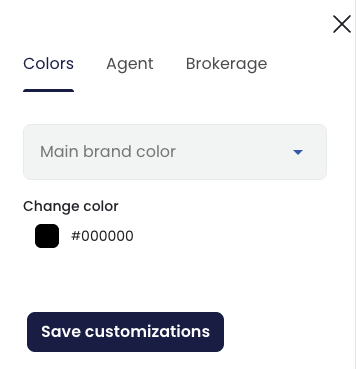
- Color Customization: At the top of the report, you'll find options to customize the primary, text, and accent colors. These can be set to match Revive's default scheme or adjusted to align with your personal or brand colors, assuming you've configured your marketing center profile. Haven't set up your marketing profile yet? Get started here.
Editing Data Points
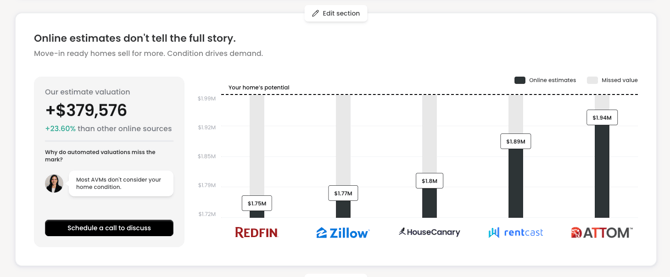
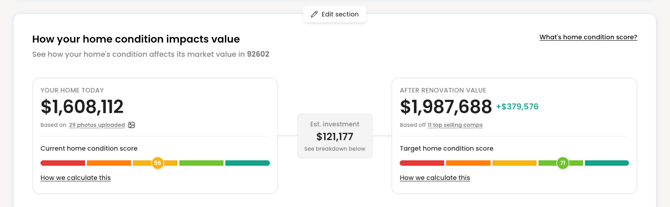
- Look for the edit buttons at the top of each report section. Clicking these buttons will open pop-ups where you can modify the numbers. If you wish to revert to an original AI-generated value, simply hit the reset button in that value's field.
-
Home value and post renovation value estimates: Edit before and after renovation values, and how it is presented (as a value add, potential value, or potential value range.)
-
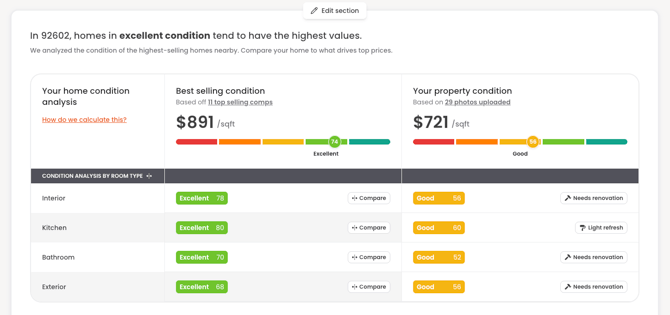
Home condition values: Edit this section to change condition scores

-
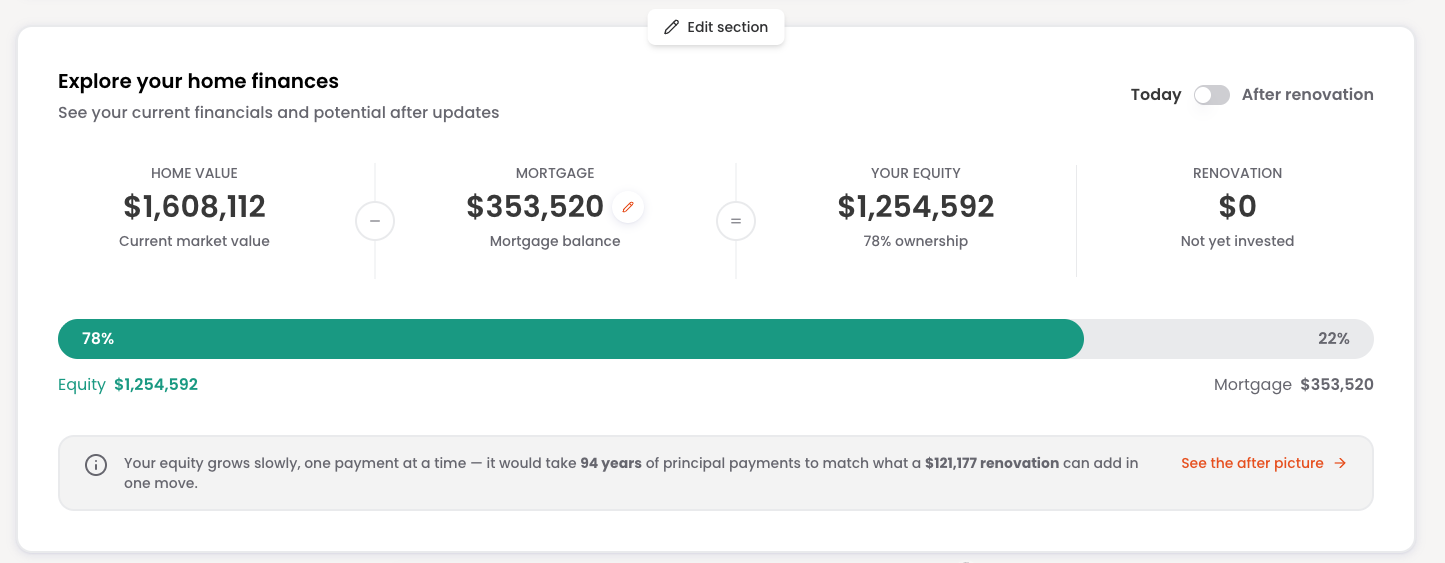
Home financial picture: Edit home value and post renovation value using the "edit" button at the top of this section, or edit the mortgage balance value by clicking the pencil icon next to "MORTGAGE".
-
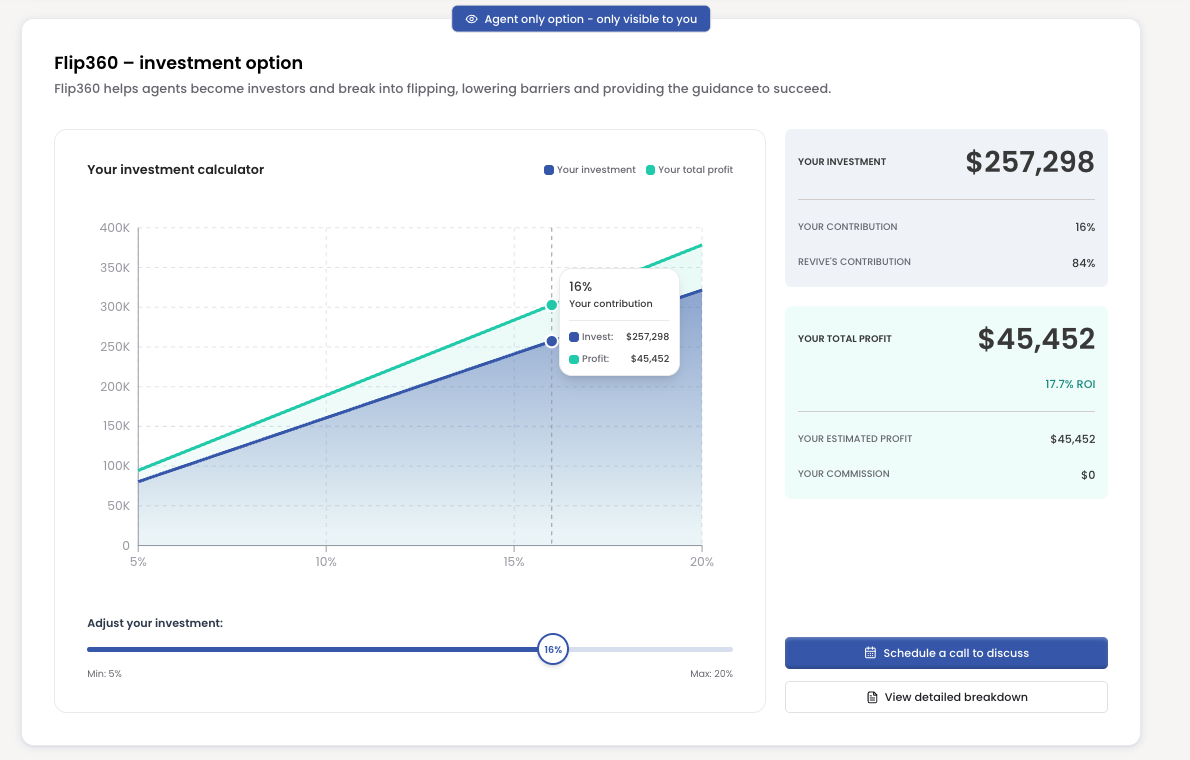
Investment options: This section is for agents only and can be edited live within your report. Simply use the available slider to see potential returns based on level of investment.
Adjusting Comparables
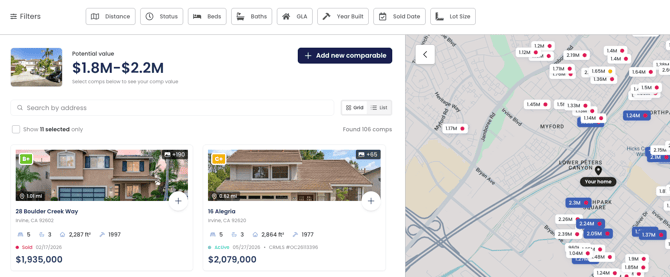
- Selecting Comparables: In the Comparables module of your report, click on edit button at the top of the neighborhood analysis section:
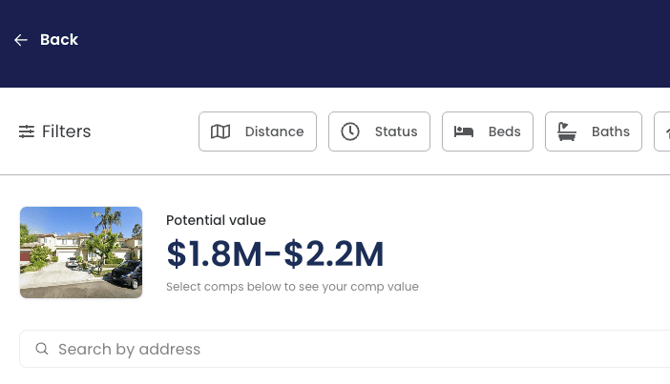
- Customizing Filters: You'll be taken to a new page, allowing you to sift through available comparables. You can refine your search with filters for sold date and mile radius. The comparables currently used in the report will be marked with a checkmark circled in blue on the left panel, and will be highlighted in blue on the map on the right panel. Feel free to deselect any and choose new ones as needed.
- Updating Comparables: After making your selections, click the "Back" button to return to your report. Note that updating your comparables will prompt Revive AI to recalculate the As-Is Value and After Renovated Value based on your new selections. If you've manually adjusted these values, selecting new comparables will reset them to the AI's model predictions.
Finalizing Your Edits
Once you've made all desired adjustments to your report, your personalized insights are ready to be shared or reviewed further. Keep in mind, we're continually looking to enhance the editing capabilities based on feedback from our users, so your experience will only get better over time.
Need Further Assistance?
If you encounter any issues while editing your report or have suggestions for additional features, don't hesitate to reach out for support. Our team is dedicated to providing you with the tools and information you need to make the most of your Revive AI experience.